Ask ZAI
Ask ZAI is an in-app assistant that lets you search your service desk data, find pages, and understand your operations using plain English. It is powered by AI and works by searching your own ZAI data — it never invents information.
This is not the ticket chat pod
Ask ZAI is a different feature from the Chat Interface elsewhere in this guide. The Chat Interface covers the live AI chat that appears inside ConnectWise and HaloPSA tickets for triage and conversation. Ask ZAI is an app-wide assistant for finding pages, employees, workflows, tickets, and statistics within the ZAI app itself.
Read-only by design
Ask ZAI can find and explain information but cannot create, edit, or delete anything. Use it to navigate and understand — then take action from the relevant ZAI page.
Where to find it
You can open Ask ZAI from two places:
| Entry point | How |
|---|---|
| Home search box | Click the Ask ZAI button inside the search field on the home page, type your question, and press Enter. |
| Slide-out drawer | Press Ctrl+K (Windows/Linux) or Cmd+K (macOS) from any page. The drawer slides in so you can read the answer and keep working. |
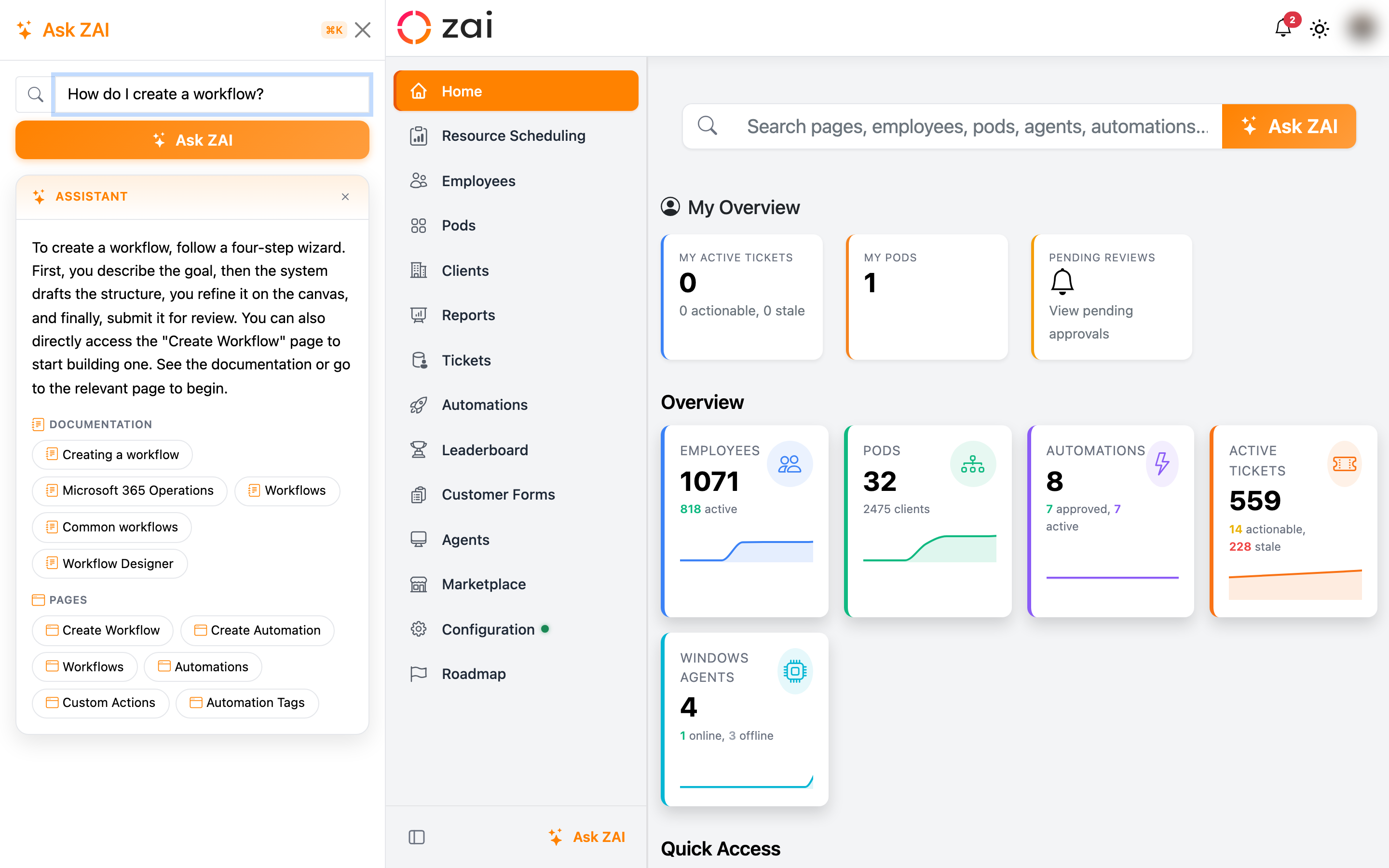
While the assistant is working, a "Thinking…" indicator appears. The answer then shows in plain text, with clickable result buttons grouped underneath by type: Documentation, Pages, Workflows, Automations, Employees, and Tickets.
Pop out into its own window
You can pop the assistant out into a small floating window that stays on top while you work — click the pop-out button in the drawer header. The window keeps your conversation and matches your light/dark theme; close it (or navigate away) and the assistant returns to the drawer.
Browser support
The pop-out uses the browser's Document Picture-in-Picture feature, so the button only appears in browsers that support it — currently Chrome and Edge.
Getting started
- Open the drawer with
Ctrl+K/Cmd+K, or click Ask ZAI in the home search box. - Type a question in plain English — or click one of the suggested starter prompts shown when the box is empty.
- Press
Enter(or click Ask ZAI). - Read the answer, then click any result button to jump straight to that page, workflow, employee, or ticket.
Not sure what to ask?
Ask ZAI shows a few example questions when you open it. On the home page they appear when you focus the search box; in the drawer they appear immediately.
What you can ask
| Question type | Example | What ZAI does |
|---|---|---|
| Find a page | "Where do I configure triage?" | Searches the app pages you have permission to access |
| Find a workflow | "Do we have an onboarding workflow?" | Searches your active workflows by name, description, and tags |
| Find an automation | "Find automations for password resets" | Searches your active PowerShell automations |
| Find an employee | "Who has Azure skills?" | Returns employee cards with skill ratings, ordered by relevance |
| Look up a ticket | "What is ticket 12345?" | Returns the ticket title, client, and source with a direct link |
| Explain an assignment | "Why was ticket 12345 assigned to Jane?" | Summarises the assignment score and its top contributing factors |
| Search the docs | "How do I create a workflow?" | Searches this help documentation and links to the right guide |
| Query statistics | "How many triages this month?" | Returns totals for triages, workflow runs, automation runs, and time saved |
Key concepts
Answers come from your data
When a question has more than one good kind of answer, Ask ZAI looks in several places at once. Asking "how do I create a workflow?", for example, can return both a documentation link and a direct link to the workflow creation wizard.
Every result button is built from a real lookup against your data — links are never made up. If ZAI can't find something, it says so and suggests rephrasing.
Your permissions always apply
Ask ZAI respects your ZAI role. Pages, employees, and tickets you don't have permission to see are never returned, so you'll only ever get results for data you're allowed to view.
Fair-use limit
To keep the assistant responsive for everyone, questions are limited to a sensible number per minute. If you hit the limit, Ask ZAI tells you to wait a moment before trying again.
Configuration
Ask ZAI requires an Azure OpenAI deployment to be configured for your environment. This is an administrator setup task — once it's in place, the Ask ZAI button and drawer become available to everyone.
Hosted customers
If you're on a Zenzero-hosted instance, this is already configured for you. If the Ask ZAI button doesn't appear, contact Zenzero support.
There's an optional drawer persistence setting your administrator can enable to keep the drawer open and restore your last answer as you move between pages. It's off by default.
Troubleshooting
The Ask ZAI button or drawer doesn't appear. The AI service hasn't been configured for your environment yet. Contact your administrator or Zenzero support.
Ask ZAI says it's unavailable. The AI service may be temporarily unreachable. Wait a moment and try again; if it persists, let your administrator know.
ZAI can't find a page I know exists. Page visibility follows your role. If a page needs a role you don't hold, it won't be returned. Ask your administrator to confirm your assigned roles.
Statistics questions return no data. Statistics require a reporting role. If you have it and still see nothing, there may simply be no data for the period you asked about.
Related pages
- Chat Interface — Overview — the live AI chat inside PSA tickets (a different feature)
- Workflows — Overview
- Statistics & dashboards