Workflow history
Every workflow execution is logged. Use the history to check what happened, find a past result, troubleshoot a failure, or re-run a workflow without typing everything again.
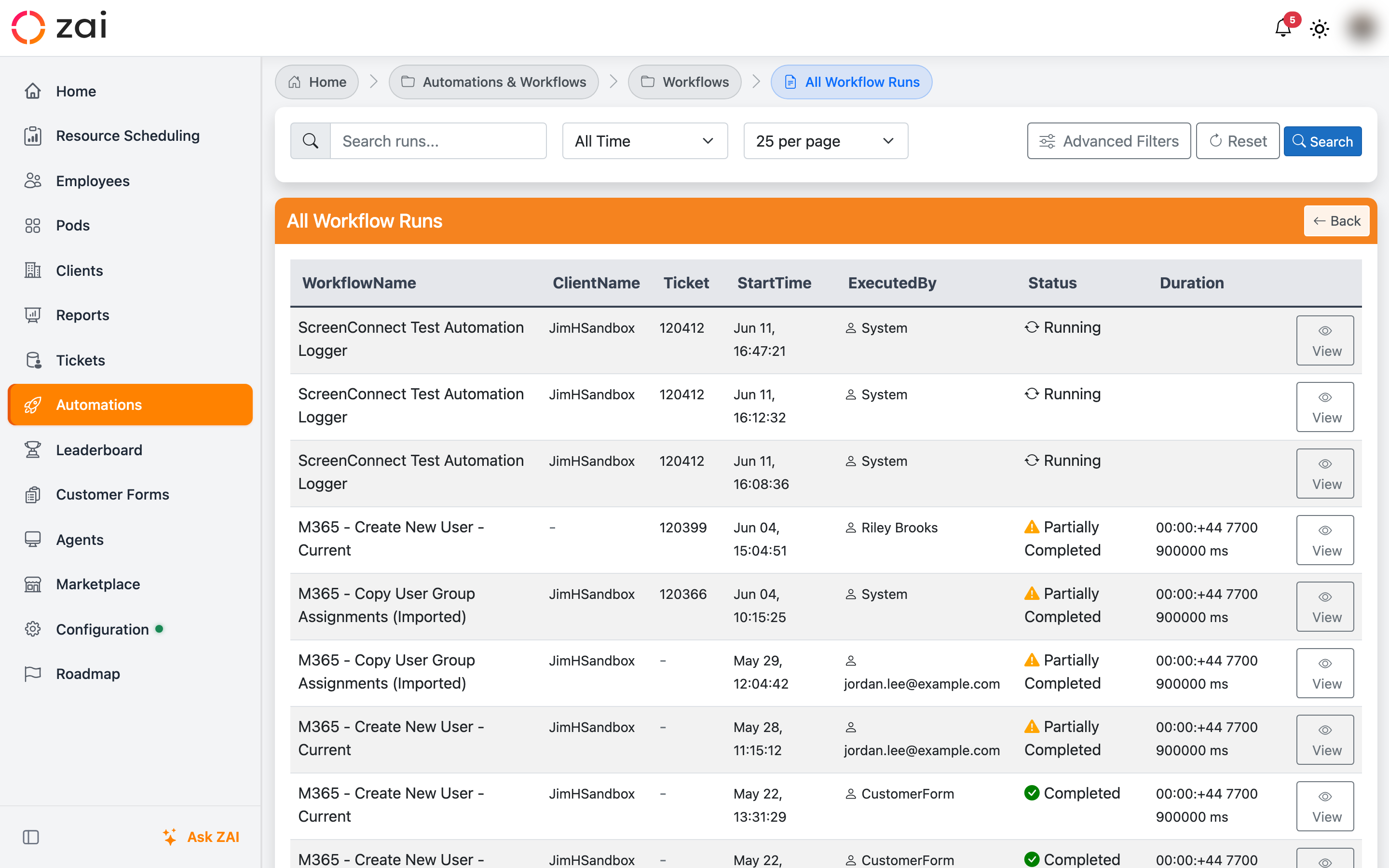
Where to find it
From the web app: Automation & Workflows → Workflows → History.
From the ZAI Pod:
Show workflow history— your recent runs.Show failed workflows— filter to failures only.Show workflows run on this ticket— only runs related to the current ticket.
What each entry shows
Each run in the history list includes:
| Field | Description |
|---|---|
| Run ID | Unique reference for that execution |
| Workflow | Which workflow ran |
| Status | Completed / Failed / Partial / Cancelled / Running |
| Duration | How long it took |
| When | Date and time |
| Who | The user who triggered it |
| Ticket | Linked ConnectWise ticket, if any |
| Tenant | Target M365 tenant |
Opening a run
Click any row to see the full execution detail:
- Summary — status, duration, context (ticket, tenant, executed by).
- Step-by-step breakdown — every step with its status and duration. Click any step to see its inputs and outputs.
- Inputs and outputs — what each step received and produced. Passwords and other sensitive values are redacted.
Filtering and searching
The history list has quick filters above the table:
- Status — All / Successful / Failed / Partial / Cancelled / Running.
- Date range — Today, Last 7 days, Last 30 days, Custom.
- Executed by — Filter to one user.
- Search box — Type a user email, ticket number, run ID, workflow name, or tenant to find matching runs.
Re-running a workflow
Open a past run and click Re-run to launch the same workflow again. ZAI brings back the previous parameters so you only need to change what's different — useful for repeating a process with a different user, or retrying after fixing an issue that caused a failure.
If the original run failed mid-way, the re-run starts fresh from step 1 — it doesn't resume from where the failure happened.
Exporting
From any open run, click Export to download:
- JSON — raw execution data.
- CSV — flat spreadsheet rows (useful for compliance reports).
From a filtered list, click Export Filtered Results to export every visible run at once.
What's stored (and what isn't)
Stored: workflow name and version, execution timestamps, status, duration, every step's inputs/outputs, the user who ran it, ticket and tenant context.
Not stored: passwords (always redacted as ●●●●), private notes, email message contents.
Default retention is 90 days for successful runs and 180 days for failed runs. Compliance exports kept for 7 years. Older entries are archived but still searchable.
Where to next
-
Running a workflow
Start a fresh run.
-
Common workflows
A catalogue of the most-used workflows.
-
Review & approval
For workflows that need a sign-off.