Ticket Queue
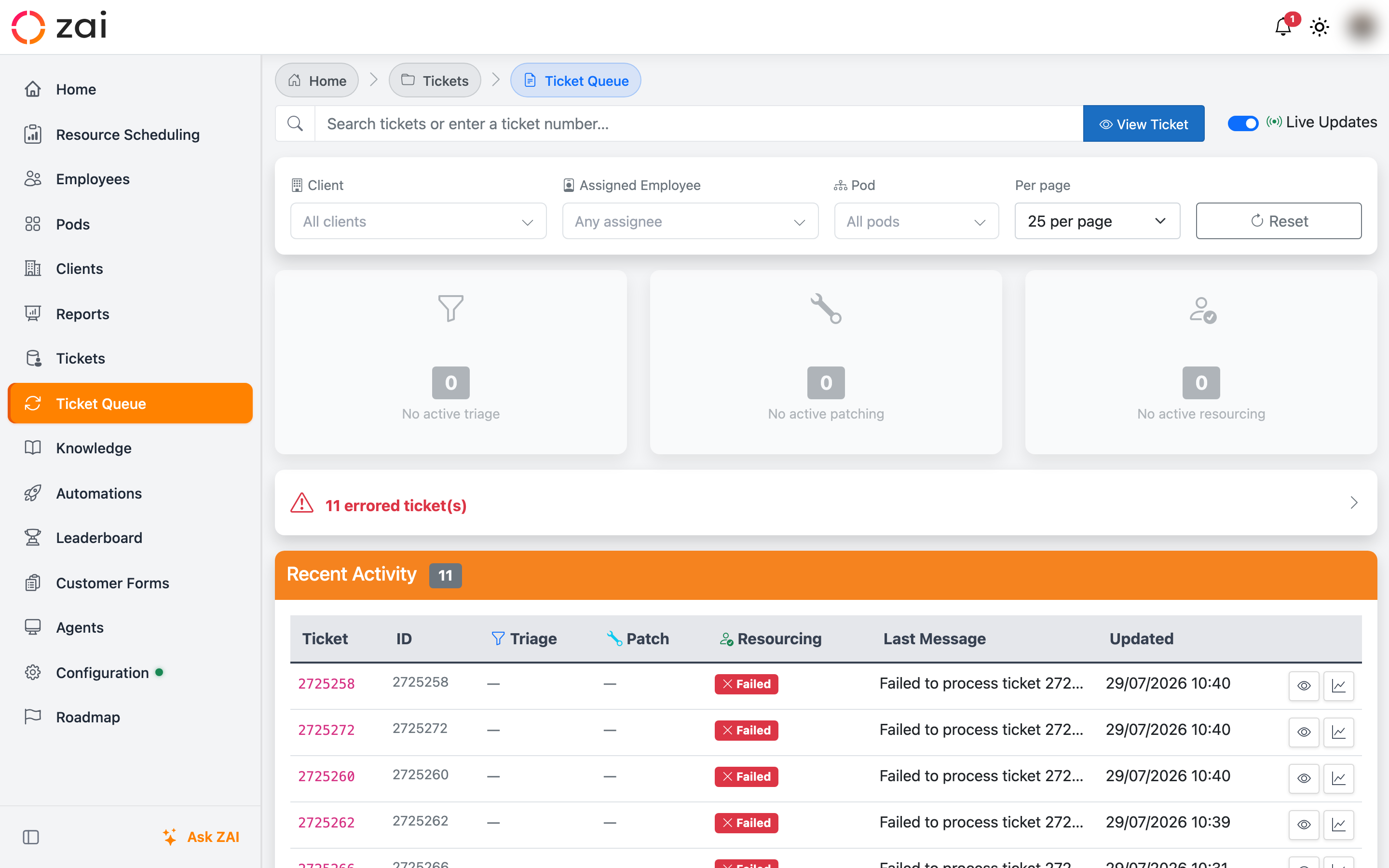
The Ticket Queue page shows you what ZAI is doing to your tickets right now — which ones are being triaged, patched, or resourced — plus a live feed of recent activity and a place to search for any ticket by number.
Overview
Go to Tickets → Ticket Queue (/TicketingDatabase/Queue). The page is scoped to the pods you belong to — if you're not a pod admin, you'll only see activity for tickets in your own pods. If you aren't assigned to any pod yet, you'll see a message explaining that an administrator needs to add you to one first.
Live updates
The Live Updates toggle at the top of the page keeps the activity counts and table refreshing in real time as tickets move through the pipeline, without needing to reload the page.
Activity summary
Three cards at the top of the page show how many tickets are currently active at each pipeline stage:
| Stage | What it shows |
|---|---|
| Triage | Tickets currently being triaged |
| Patch | Tickets currently being patched |
| Resourcing | Tickets currently being assigned |
A card dims when its count is zero, so you can tell at a glance which parts of the pipeline are active.
Errored tickets
If any tickets have hit an error, a red banner appears above the activity cards showing how many. Click it to jump to the list of errored tickets and see what went wrong.
Recent Activity
The Recent Activity table lists tickets that have moved through the pipeline in the last five days. Each row shows:
- Ticket — the ticket's display number (its full Autotask ticket number if known, otherwise the internal ID)
- ID — the raw external ticket ID
- Triage / Patch / Resourcing — a status badge for each stage (Queued, Active, Completed, Skipped, Failed, or Dead-lettered)
- Last Message — the most recent status message for the ticket
- Updated — when that message was last updated
Use the row actions to open the ticket detail or view its assignment breakdown.
Pagination
As of 0.7.0, the Recent Activity table paginates instead of only showing the first page of results. Use the per page dropdown to show 10, 25, 50, or 100 rows at a time, and the Previous / Next controls at the bottom to move between pages. Changing a filter (pod, client, or employee) takes you back to page 1.
Searching for a ticket
Administrators see a ticket search box at the top of the page, powered by the same PSA ticket picker used on the Ticket Assignment Calculator. Type a ticket number, title, or company name to search, or select a result to jump straight to that ticket.
Search by Autotask ticket number
As of 0.7.0, you can search using the full Autotask ticket number format (TYYYYMMDD.TTTT, e.g. T20260626.0043) as well as the internal ticket ID. This works both in the ticket search box and anywhere else a ticket number is entered.
Unassigned ticket queue
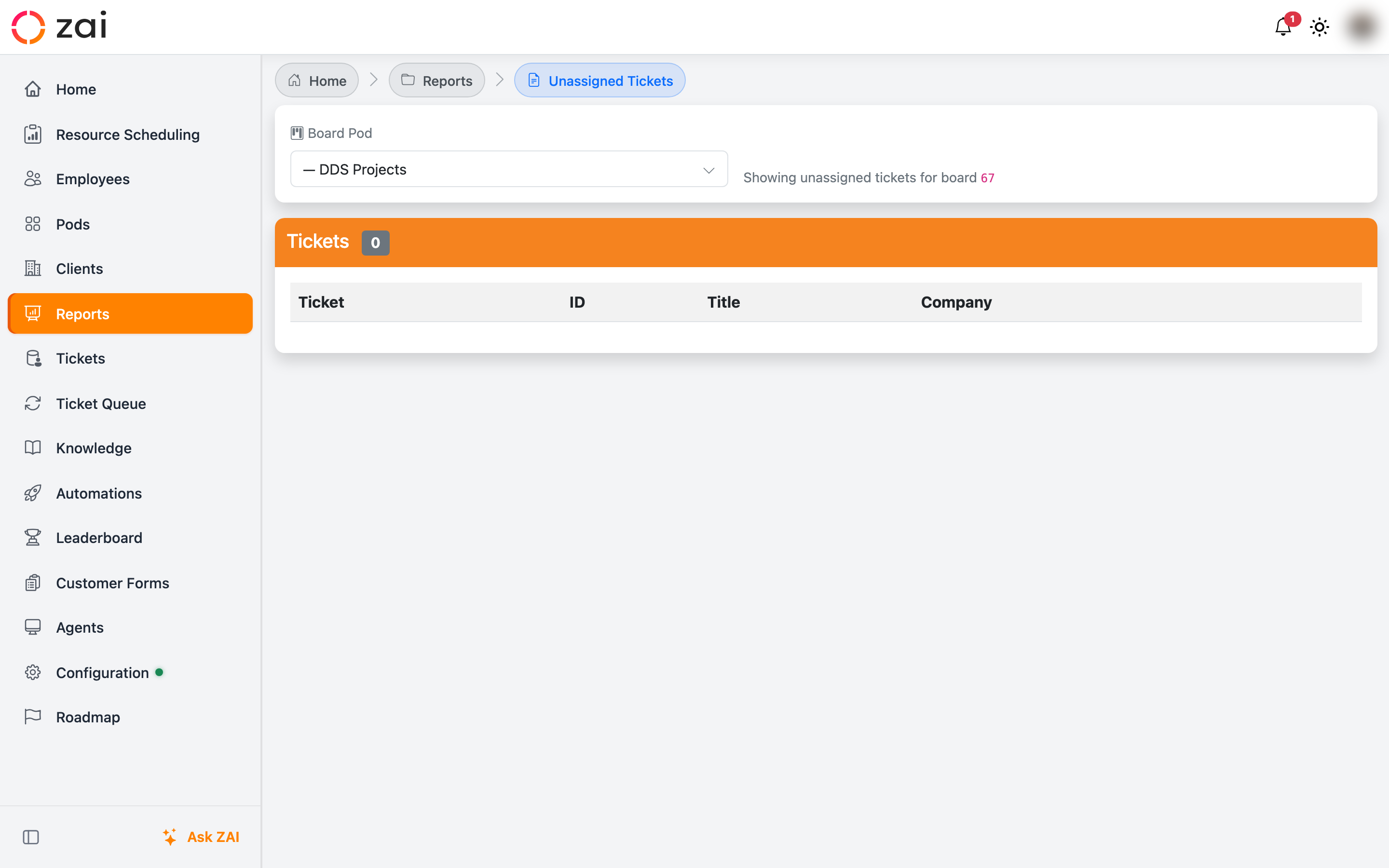
The unassigned ticket queue lives on a separate page — go to Reports → Unassigned Tickets — and lists open tickets in your connected PSA that don't yet have an assignee.
Choosing a board pod
Use the Board Pod filter to pick which board pod configuration the queue reads from. Board pods are tied to a specific PSA board, so switching between them changes which tickets appear.
Note
If none of your board pods have a board configured, the queue shows unassigned tickets across every board instead of filtering to one.
Re-triaging a ticket
Each row in the unassigned queue has a Re-triage & Assign action. This re-runs the full pipeline for that ticket — triage, field updates and notes, then resourcing — using the board pod you've selected. You'll see a confirmation message once the ticket has been queued, or a direct assignment if the middleware queue isn't configured.
New in 0.7.0
Choosing which board pod configuration the unassigned queue uses, and re-triaging directly from it, are both new. Re-triage previously could fail silently or use the wrong pod configuration — this is now fixed.