Review & approval
Before a workflow can go live, it has to be reviewed and approved. This page is for the reviewers — what gets notified, what to look at, and how to approve or reject.
How you'll know there's something to review
When someone submits a workflow that names you as an approver, you're notified in three places at once.
Bell icon in the nav bar
The bell shows a count of items waiting for your decision.

Click it to open the Pending Approvals inbox.
Toast notification
A toast pops up in the bottom-right of the screen with the workflow name and a Review button. It auto-dismisses after 10 seconds.
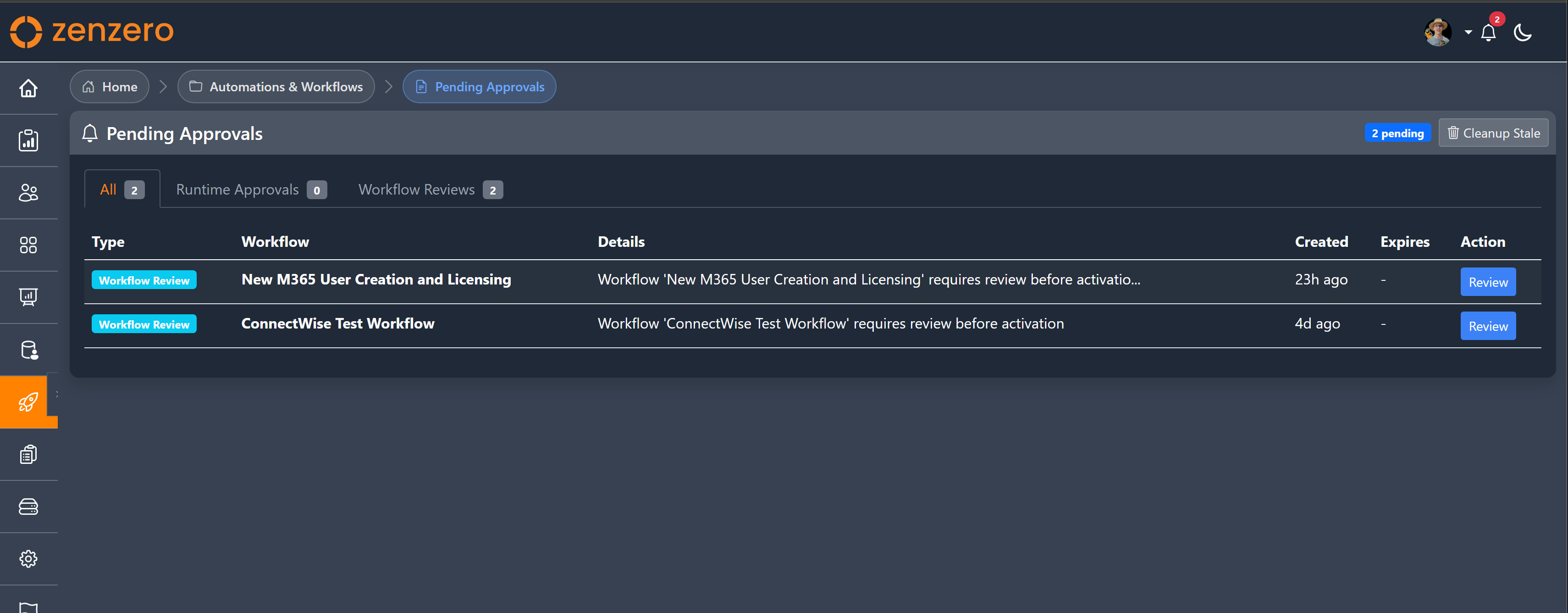
The Pending Approvals inbox
Three tabs — All, Runtime Approvals (approvals inside running workflows), and Workflow Reviews (this page). Each item has a Review button that opens the review page.
Teams notifications are coming in a future release — for now, the bell + toasts cover it.
The review page
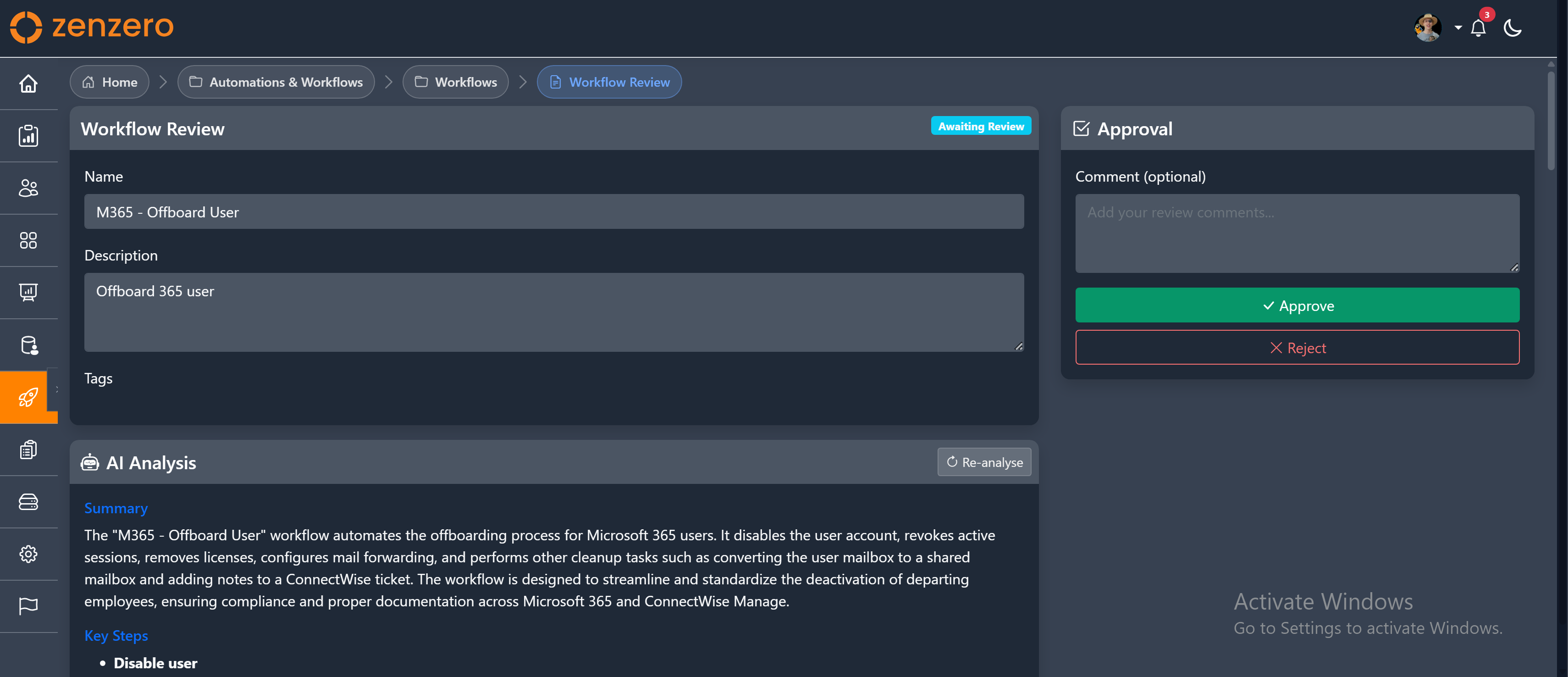
Open a pending review and you see a two-column layout. Workflow detail on the left, decision panel on the right.
What's on the left
- Workflow name, description, and tags
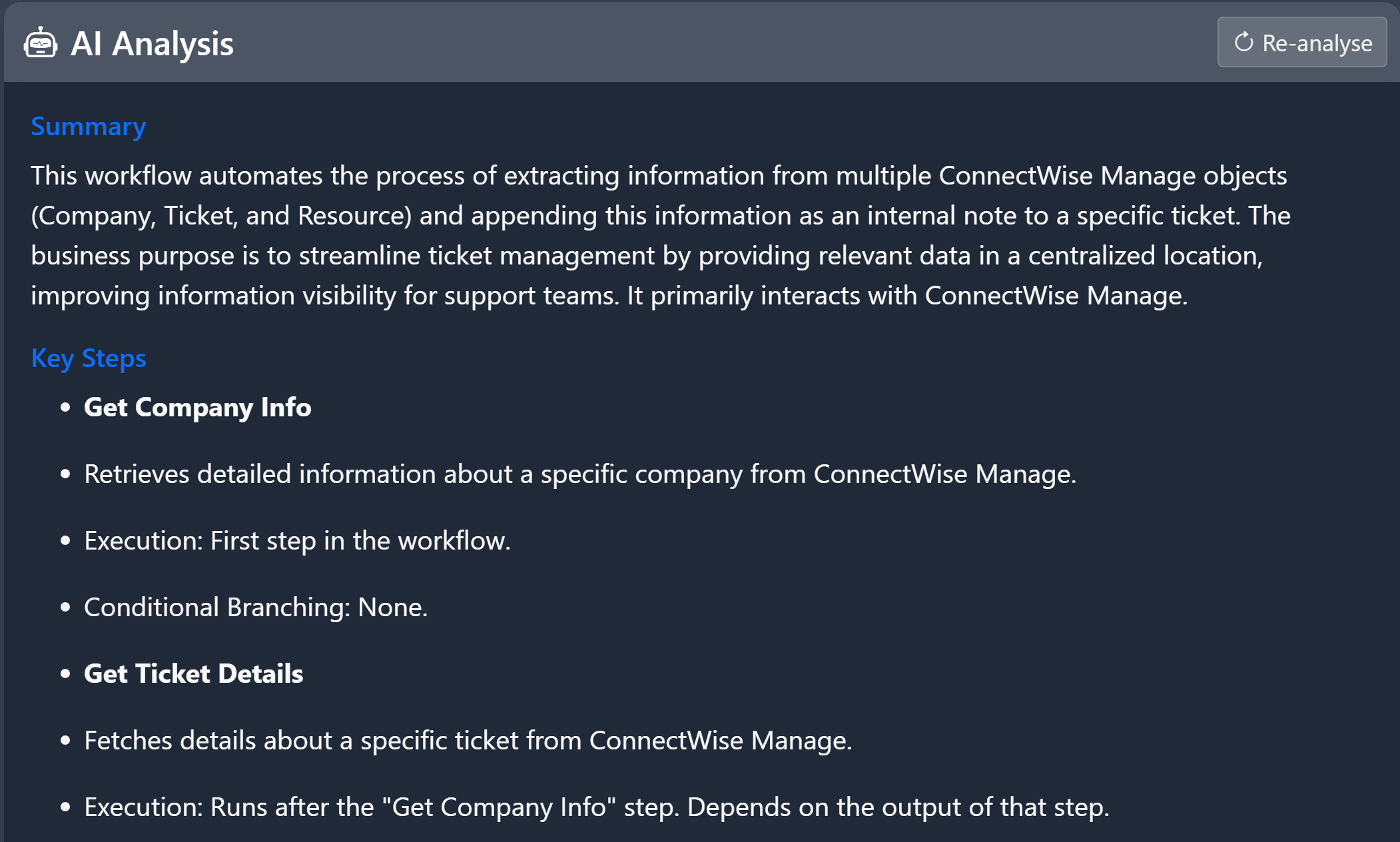
- AI analysis card — see below
- Detailed steps list, expandable
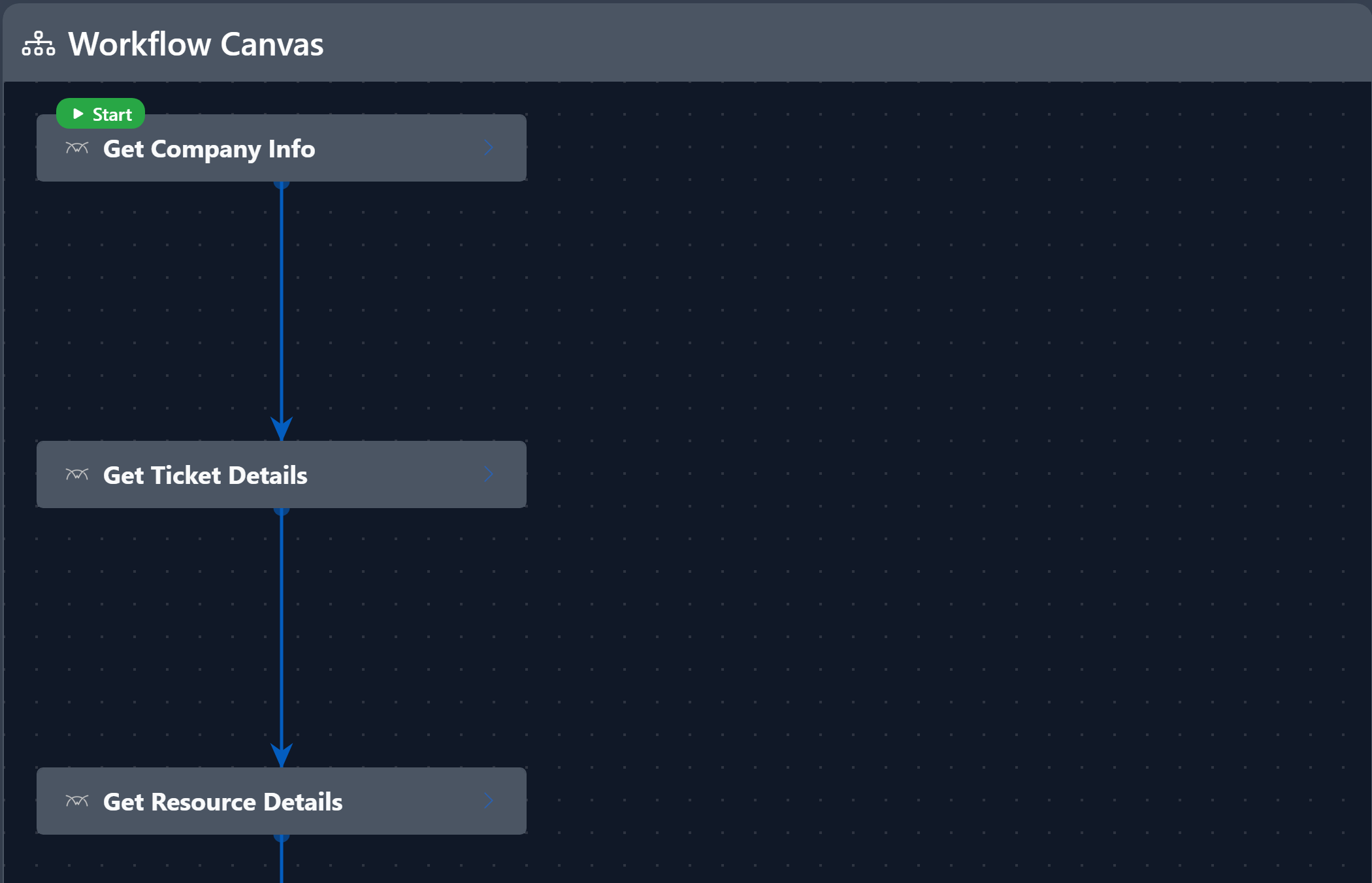
- Read-only canvas showing the steps and connections
The AI analysis
Auto-generated when the page loads. Reads the workflow and produces a plain-language summary, the most important steps, and a risk assessment.
Risks are colour-coded:
| Severity | Examples |
|---|---|
| HIGH (red) | Password resets, MFA changes, user deletion, admin role changes |
| MEDIUM (amber) | Ticket changes, config modifications, email notifications |
| LOW (blue) | Read-only operations, record creation |
Click Re-analyse if the workflow's been updated and you want a fresh take.
The decision panel (on the right)
The panel stays pinned as you scroll. It shows the level you're approving at, an optional comment box, and the two buttons.
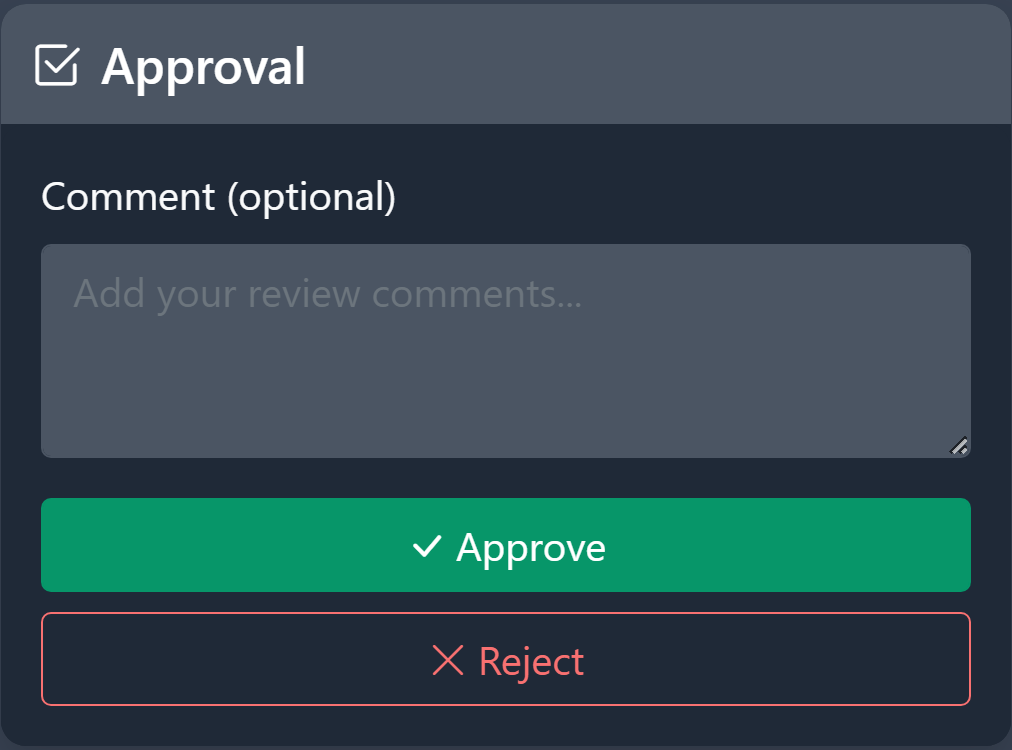
- Approve — sign off for this level. If there are more levels above yours, the next level's approvers are notified.
- Reject — sends the workflow back to Draft. Your comment goes to the submitter so they know what to change.
If you're not one of the approvers at the current level, you'll see a "not authorised" message instead of the buttons.
Multi-level approval
Some workflows need sign-off from more than one person, in sequence.
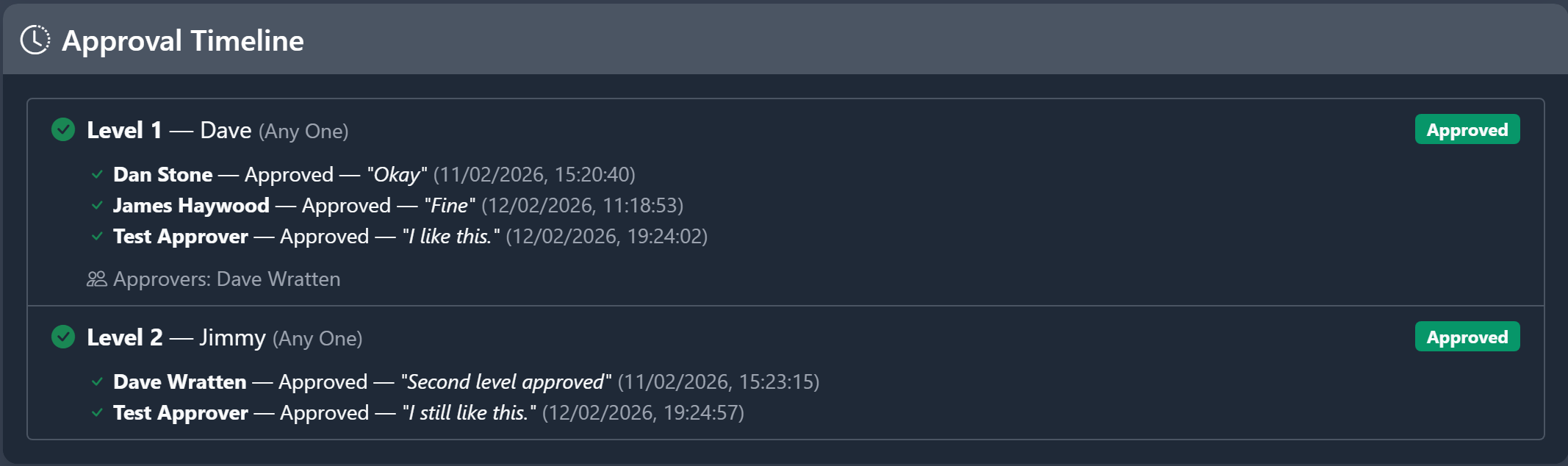
Each level has:
- A name (e.g. "Level 1: Team Lead", "Level 2: Manager")
- A logic mode — Any One (any single approver passes the level) or All Required (every named approver must approve)
- A list of approvers
The timeline colour-codes each level: green for approved, amber for currently being reviewed, grey for pending, red for rejected.
Rejection at any level rejects the whole workflow — it goes back to Draft and the submitter is notified.
What happens after you decide
If approved at the final level, the workflow becomes Active and available for users to run from the ZAI Pod. The submitter is notified.
If rejected, the workflow returns to Draft, the submitter is notified with your comments, and they can revise and resubmit.
Tips for good reviews
- Read the AI analysis first — it highlights risks you might miss when scanning the canvas.
- Add a comment for both approvals and rejections — even a short "looks good, approved" is useful audit context.
- Examine the canvas to understand the flow, especially branches (On Condition / On Failure arrows).
- For All Required levels, coordinate with the other approvers — your team needs to align.
Where to next
-
Workflow Designer
Where workflows are built and approval chains configured.
-
Creating a workflow
The submitter's side of the process.
-
Workflow history
Find a workflow's past versions and runs.