SAM Consent Diagnostics
The Secure Application Model (SAM) page is where ZAI connects to your Microsoft partner tenant to manage customer tenants via GDAP (Granular Delegated Admin Privileges). Its Connection Diagnostics panel runs a full health check across every layer of that connection — configuration, authentication, stored consent, GDAP relationships, and the optional Partner Center / Exchange tiers — so you can see exactly where a SAM problem sits instead of guessing from a single error message.
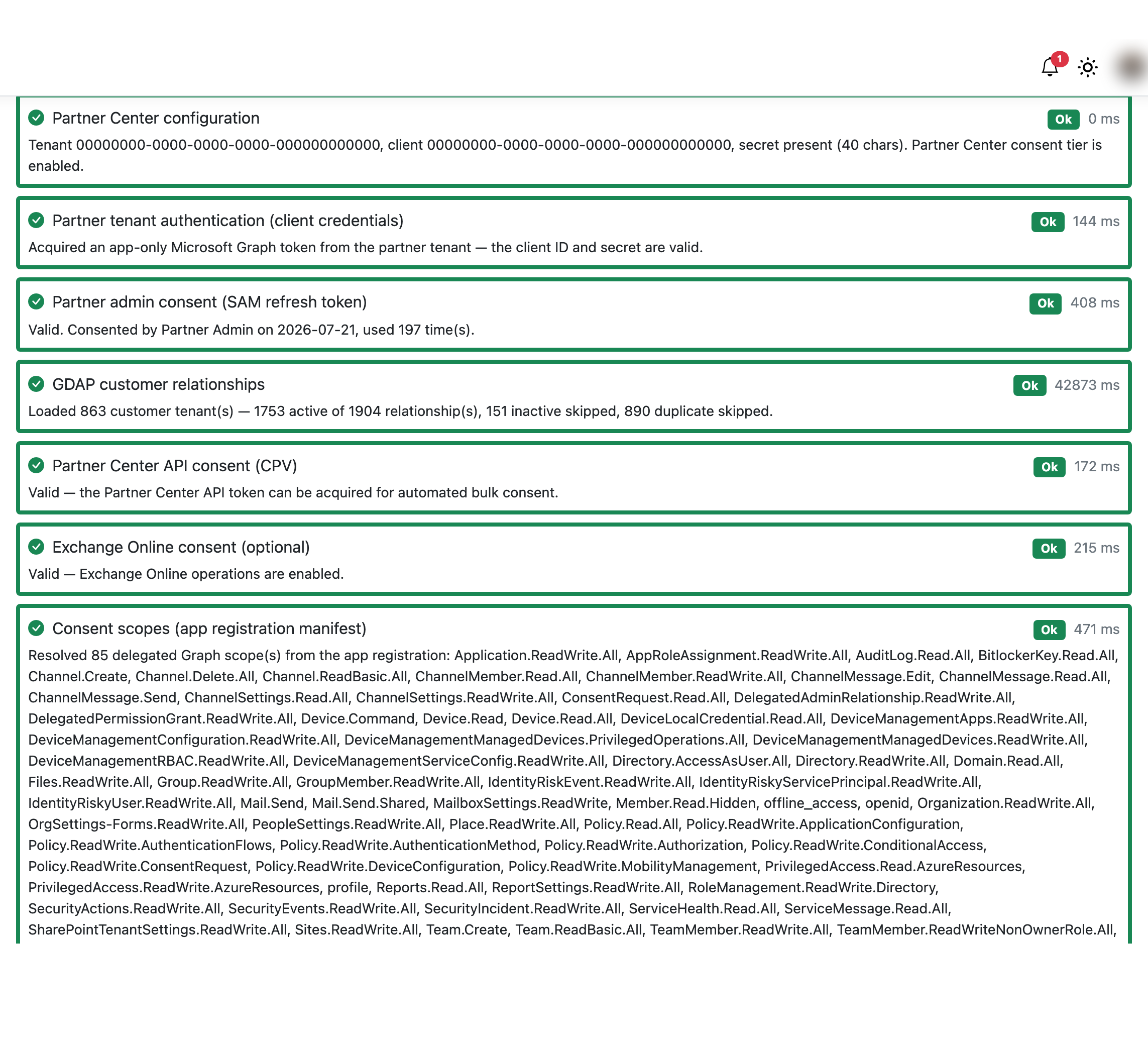
Overview
SAM lets ZAI act on your customers' tenants without per-tenant app registrations, by combining an app registration in your partner tenant with a partner admin's GDAP-scoped consent. That's several moving parts — app registration credentials, a delegated refresh token, the Azure AD relationships GDAP is built on, and (optionally) separate consent tiers for Partner Center API access and Exchange Online — and any one of them can be the reason customer access isn't working.
Diagnostics runs a fixed sequence of checks covering each of those parts and reports each one as OK, Warning, Error, Skipped, or Info, with a plain-English detail line and — for failures — the underlying Azure AD/Graph error and a remediation hint.
Diagnostics never throws
Diagnostics is deliberately isolated from the rest of the page: it's computed first and always renders, even if the rest of the SAM page fails to load. It's designed to be the thing that explains why the rest of the page didn't load.
Getting started
Navigating to Diagnostics
Go to Admin Dashboard → Secure Application Model (SAM). The Connection Diagnostics panel appears near the top of the page, above the SAM status card.
The panel auto-expands if any check is a Warning or an Error, and stays collapsed when everything is OK.
Re-running diagnostics
Diagnostics results are cached for a couple of minutes so routine page loads (searching or paging through partner tenants) don't re-probe Azure AD every time. Click Re-run in the panel header to force a fresh check immediately — useful right after you've fixed something and want to confirm it worked.
Key concepts
The checks, in order
| Check | What it verifies |
|---|---|
| Partner Center configuration | The tenant ID, client ID, and client secret are present and well-formed (valid GUIDs). |
| Partner tenant authentication (client credentials) | The app registration's client ID/secret can actually acquire an app-only Microsoft Graph token. |
| Partner admin consent (SAM refresh token) | A partner admin has completed SAM consent, and the stored refresh token is still accepted by Azure AD. |
| GDAP customer relationships | Customer tenants can be enumerated via Graph, and how many GDAP relationships are active versus total. |
| Partner Center API consent (CPV) | (Only if the Partner Center consent tier is enabled) The separate Partner Center refresh token is valid. |
| Exchange Online consent (optional) | (Only if configured) The Exchange Online refresh token is valid — needed only for Exchange operations Graph doesn't cover, such as shared mailboxes or mail forwarding. |
| Consent scopes (app registration manifest) | The delegated Graph scopes ZAI will request when consenting new customer tenants can be read from the app registration manifest. |
Checks that depend on an earlier one (for example, authentication depending on configuration) show Skipped rather than failing outright when the prerequisite isn't met — so a single root cause doesn't produce a wall of unrelated-looking errors.
Reading a failed check
Failures carry more than a one-line message. Where the underlying Azure AD or Graph call failed, the check shows the AADSTS/Graph error code, the HTTP status, and — critically — the request-id, which is what Microsoft support will ask for if you need to escalate. A hint underneath translates common error codes into plain-English next steps (for example, pointing you back to re-consent, or to grant a missing application permission).
Status meanings
- OK — the check passed.
- Warning — something needs attention but isn't necessarily broken (for example, no active GDAP relationships yet, or an optional consent tier not configured).
- Error — the check failed outright.
- Skipped — a prerequisite check failed, so this one couldn't run.
- Info — informational only (for example, an optional feature that's intentionally disabled).
Troubleshooting
"Partner Center configuration" is an Error. Required SAM credentials (tenant ID, client ID, client secret) aren't configured. Set them via the Key Vault Secrets page or the appropriate app vault — never in plain configuration files.
"Partner tenant authentication" fails but configuration is OK. The client secret has likely expired, or the app registration no longer exists in the partner tenant. Check the app registration in Entra ID and rotate the secret if needed.
"Partner admin consent" is an Error. No partner admin has completed SAM consent yet, or the stored refresh token was rejected. Click Grant Partner Admin Consent and sign in as a partner admin holding the required GDAP roles.
"GDAP customer relationships" shows zero active relationships. Either no GDAP relationships exist yet, they've expired, or the consenting admin lacks visibility into them. Check Partner Center under Customers → Admin relationships.
"Consent scopes" is a Warning about a fallback list.
ZAI couldn't read the app registration's own manifest (usually a missing Application.Read.All permission), so it's using a built-in fallback scope list for newly consented tenants instead of the manifest's actual scopes. Grant the missing permission to get the real scope list back.